
According to the WebAIM Million annual accessibility analysis. Low-contrast text remains the single most common accessibility violation on the web. Plaguing over 80% of top homepages year after year. That isn’t just an aesthetic oversight—it is a massive legal liability, a conversion killer, and an active barrier for millions of users trying to read your content.
A web color contrast checker is a specialized accessibility auditing tool that calculates the difference in relative luminance between two colors: the foreground (text, icons, borders) and the background. It measures this difference along a standardized mathematical scale to determine whether your typography and user interface components meet mandatory legal benchmarks like the Web Content Accessibility Guidelines (WCAG 2.1 and WCAG 2.2).
Whether you are configuring design tokens in Figma, inspecting DOM elements inside browser DevTools, or auditing a legacy site before an ADA compliance review, using the best web color contrast checker ensures your interface balances brand aesthetics with universal readability.
How Web Color Contrast Ratios Work (The Science & WCAG Standards)
A web color contrast ratio measures the difference in light output between the brightest color (white, normalized to 1) and the darkest color (black, normalized to 0). Expressed as a ratio ranging from 1:1 (identical colors, zero contrast) to 21:1 (pure black #000000 against pure white #FFFFFF), the standard determines the minimum visual legibility required for human vision.
The World Wide Web Consortium (W3C) calculates this ratio through a mathematical model based on Relative Luminance ($L$), defined as the relative brightness of any point in a colorspace normalized to 0 for the darkest black and 1 for the lightest white.
$$\text{Contrast Ratio} = \frac{L_1 + 0.05}{L_2 + 0.05}$$
In this formula:
- $L_1$ is the relative luminance of the lighter of the colors.
- $L_2$ is the relative luminance of the darker of the colors.
- The constant offset of $0.05$ accounts for ambient display glare and prevents division by zero when testing absolute black.
WCAG 2.1 & 2.2 Compliance Benchmarks
To achieve legal compliance under international accessibility frameworks, digital interfaces must satisfy specific thresholds governed by Success Criterion 1.4.3 (Contrast Minimum) for Level AA and Success Criterion 1.4.6 (Contrast Enhanced) for Level AAA.
Furthermore, Success Criterion 1.4.11 (Non-text Contrast) mandates baseline legibility for interactive UI elements and graphical objects.
| Content Element Type | Font Size / Weight Equivalent | WCAG Level AA Minimum | WCAG Level AAA Enhanced | Primary Governing WCAG Criterion |
| Normal Body Text | Under 18pt (24px) regular, or under 14pt (18.66px) bold | 4.5:1 | 7:1 | SC 1.4.3 / SC 1.4.6 |
| Large Text | At least 18pt (24px) regular, or at least 14pt (18.66px) bold | 3:1 | 4.5:1 | SC 1.4.3 / SC 1.4.6 |
| UI Components & Icons | Input borders, focus rings, toggles, stand-alone icons | 3:1 | Not Specified | SC 1.4.11 (Non-text) |
| Incidental / Disabled | Inactive states, purely decorative graphic elements | No requirement | No requirement | N/A (Exempt) |
Why Web Color Contrast Matters in Modern Digital Strategy
Ensuring compliant color contrast is not merely a checklist requirement for engineers—it directly influences organic search retention, baseline conversion rates, and global corporate liability.
1. Human-Centered User Experience & Mobile Environments
Visual perception is dynamic. It degrades significantly under real-world viewing conditions, such as viewing a mobile screen under direct midday sunlight, operating a budget phone with poor display panels, or browsing while suffering from screen fatigue.
Beyond temporary situational impairments, the World Health Organization (WHO) estimates that over 2.2 billion people globally live with near or distant vision impairment. When you rely on subtle 2:1 gray text for secondary descriptions, you shut out older demographics, people with low visual acuity, and the roughly 8% of men and 0.5% of women worldwide living with color vision deficiencies.
2. Legal Compliance, ADA Title III, and the European Accessibility Act
Digital accessibility litigation has evolved into an active enterprise risk:
- ADA Title III (United States): Federal courts across the US consistently interpret commercial websites as places of public accommodation. Failing standard WCAG 2.1 Level AA contrast guidelines serves as primary evidentiary grounds in thousands of website accessibility lawsuits filed each year.
- Section 508: Requires federal agencies and any commercial vendor contracting with the US government to guarantee fully accessible digital tools and documentation.
- European Accessibility Act (EAA): Establishes binding accessibility mandates across EU member states for e-commerce, banking services, and digital products, imposing severe administrative fines and commercial bans on non-compliant platforms.
3. Conversion Rate Optimization (CRO) and Revenue Protection
High-friction UI drives high bounce rates. When microcopy—such as shipping notices, terms checkboxes, form validation errors, and pricing tier descriptions—fades into the background, user drop-off spikes. Faded primary buttons and low-contrast form input borders confuse users about where to click and what to fill, bleeding qualified revenue straight out of your conversion funnel.
Step-by-Step: How to Test and Audit Colors Using a Web Contrast Checker
Auditing an interface takes seconds when integrated directly into your build and QA pipeline. Follow this four-step testing workflow:
[1. Extract HEX/RGB] ──> [2. Input Text & Background] ──> [3. Check AA/AAA Threshold] ──> [4. Audit Hover/Focus States]
Step 1: Extract Foreground and Background Color Values
Use your browser’s element inspector (Right Click -> Inspect) or your design application to grab the exact CSS hex codes or RGB values. Always inspect the computed styles to ensure inherited colors or parent container backgrounds are not altering the final rendering.
CSS
/* Example target CSS */
.checkout-btn {
  color: #FFFFFF;            /* Foreground (Text) */
  background-color: #2563EB; /* Background (Container) */
}
Step 2: Feed Hex Codes into an Online Contrast Calculator
Open your website color accessibility checker. Paste the foreground hex code into the text input field and the background hex code into the canvas/background field. If you are auditing transparent layers (RGBA), ensure your tool supports alpha blending against the underlying base canvas.
Step 3: Evaluate Pass/Fail Metrics Against AA and AAA Benchmarks
Evaluate the resulting numerical ratio against your target typography scale:
- If checking 16px body copy and the ratio yields 4.2:1, it fails WCAG Level AA (which demands 4.5:1). Darken the text or lighten the background until it reaches at least 4.5:1.
- If checking a 32px bold header, a 4.2:1 score comfortably passes Level AA (which requires 3:1).
Step 4: Validate Dynamic Pseudo-States (Hover, Active, and Focus Rings)
Static testing misses half the picture. You must re-run contrast tests for:
:hoverbackground shifts on buttons.:focus-visibleoutline rings against both the button surface and the underlying page background (must hit a 3:1 ratio under SC 1.4.11).- Error validation text states (
#EF4444red alert text on pale pink#FEE2E2containers).
Top 5 Web Color Contrast Checkers in 2026 (Comparative Analysis)
Different workflows demand different tools. Here is how the leading color accessibility checkers stack up across front-end engineering, UI prototyping, and sitewide accessibility QA:
| Tool Name | Primary Environment | Standards Evaluated | Key Differentiator |
| 1. WCAG Color Contrast | Web-based / Browser | WCAG 2.1, WCAG 2.2 | Instant shareable URLs, alpha-channel blending, dynamic slider adjustments |
| 2. Chrome / Firefox DevTools | Built-in Browser Inspector | WCAG 2.1 Level AA/AAA | Live DOM testing, automatic contrast line overlays inside color pickers |
| 3. TPGi Colour Contrast Analyser (CCA) | Desktop (macOS / Windows) | WCAG 2.1, WCAG 2.2 | Native screen eyedropper that samples non-browser apps, PDFs, and Figma canvases |
| 4. Stark Accessibility Plugin | Figma / Sketch / Adobe XD | WCAG 2.1 & 2.2, APCA | Shift-left testing inside design files, automated color blindness simulation |
| 5. WordPress Block Editor (Gutenberg) | CMS Content Layer | Basic WCAG AA | Real-time author alerts warning non-technical writers about unreadable palettes |
1. Dedicated Web Contrast Checkers (Online Tools)
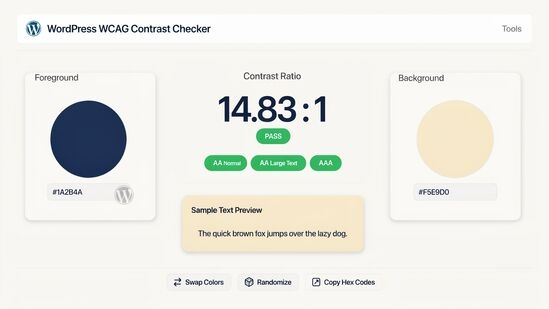
Online contrast calculators provide the fastest route for standalone testing. They allow engineers and copywriters to paste foreground and background hex codes directly into clean inputs to retrieve immediate pass/fail verdicts. The best web color contrast checker utilities in this category provide integrated lightness sliders, allowing you to nudge a failing 4.1:1 color directly to a compliant 4.5:1 tone without guessing new color values in your IDE.
2. Browser DevTools (Chrome & Firefox Elements Panel)
Built directly into Chromium and Gecko engines, native DevTools eliminate the need to switch windows. When you inspect an element and click its CSS color swatch, the developer panel displays an integrated accessibility section showing the exact contrast ratio against the parent node, alongside visual guide lines drawn directly across the color spectrum.
3. Desktop Analyzers: TPGi Colour Contrast Analyser (CCA)
TPGi’s CCA is an essential staple for accessibility auditors. Because it lives at the OS level, its eyedropper tool samples pixel values anywhere on your screens: native desktop applications, streaming media, static imagery, and complex canvas apps where DOM extraction is impossible.
4. Design System Tools: Stark (Figma / Sketch)
Catching contrast bugs in production code costs significantly more developer hours than fixing them in the layout phase. Tools like Stark integrate straight into design tools like Figma, checking text contrast online against design token libraries and running real-time color blindness simulations (protanopia, deuteranopia, tritanopia, achromatopsia).
5. CMS-Specific Checkers: Gutenberg Block Editor
Modern CMS environments protect non-technical content creators from making poor design choices. WordPress’s native block editor automatically checks text contrast in paragraph and button blocks, throwing an inline notice if an author chooses a light gray font over a light yellow container.
4 Critical Contrast Failures Web Designers Make (And CSS Fixes)
Modern web design trends often emphasize subtle minimalism over raw utility. Here are four widespread contrast traps that trigger accessibility failures—and the exact CSS changes needed to remediate them.
1. Faded Secondary and Metadata Text
Designers frequently use light gray text for timestamps, author bylines, and breadcrumbs to establish typographic hierarchy. When applied to white backgrounds, values like #999999 generate a failing 2.84:1 ratio.
CSS
/* ❌ FAILS: Contrast ratio 2.84:1 (Requires 4.5:1 for 14px regular text) */
.article-meta {
  color: #999999;
  background-color: #FFFFFF;
}

/* ✅ PASSES: Contrast ratio 4.61:1 (WCAG Level AA Compliant) */
.article-meta {
  color: #737373; /* Darkened neutral slate */
  background-color: #FFFFFF;
}
2. White Text on Saturated Accent Buttons
Bright brand colors (such as vibrant yellow, neon cyan, or pastel green) carry high intrinsic luminance. Overlaying white text on these buttons fails catastrophically.
CSS
/* ❌ FAILS: Contrast ratio 1.62:1 (Illegible for nearly all users) */
.btn-primary {
  color: #FFFFFF;
  background-color: #FACC15; /* Tailwind Yellow 400 */
}

/* ✅ PASSES: Contrast ratio 12.98:1 (Using dark slate foreground text) */
.btn-primary {
  color: #0F172A; /* Slate 900 text on vibrant yellow */
  background-color: #FACC15;
}
3. Barely-Visible Form Input Borders & Focus Rings
Under WCAG 2.1 Success Criterion 1.4.11, visual boundaries of form components and active focus states must clear a 3:1 contrast ratio against the surrounding page canvas. Subtle #E5E7EB borders fail this requirement.
CSS
/* ❌ FAILS: Contrast ratio 1.25:1 against white canvas (#FFFFFF) */
.form-input {
  border: 1px solid #E5E7EB;
}

/* ✅ PASSES: Contrast ratio 3.12:1 against white canvas */
.form-input {
  border: 1.5px solid #94A3B8; /* Slate 400 border */
}

/* Focus ring must hit at least 3:1 against surrounding background */
.form-input:focus-visible {
  outline: 2px solid #2563EB; /* 4.56:1 contrast ratio */
  outline-offset: 2px;
}
4. Text Overlaid on Unfiltered Hero Images
Placing white text directly over background hero images creates uncontrolled contrast failures. As the background image shifts across responsive viewports, light sections of the photography will wash out the typography. Solve this by applying a CSS gradient scrim overlay:
CSS
/* ❌ FAILS: Direct placement risks unreadable text over light photo areas */
.hero-banner {
  background-image: url('hero-landscape.jpg');
  color: #FFFFFF;
}

/* ✅ PASSES: Multi-stop linear gradient guarantees consistent contrast */
.hero-banner {
  background-image:
    linear-gradient(
      180deg,
      rgba(15, 23, 42, 0.85) 0%,
      rgba(15, 23, 42, 0.65) 100%
    ),
    url('hero-landscape.jpg');
  color: #FFFFFF;
}
Frequently Asked Questions (FAQ)
Is WCAG AAA contrast mandatory for legal compliance?
No, Level AAA contrast (7:1 for normal text) is not strictly mandatory for standard legal compliance. Most worldwide accessibility statutes—including ADA Title III settlements, Section 508, and the European Accessibility Act—designate WCAG Level AA (4.5:1 for normal body text and 3:1 for large text and UI components) as the required baseline standard. AAA compliance is strongly recommended for specialized medical, governmental, or educational services.
Does a passing contrast ratio guarantee my site is 100% accessible?
No, a passing contrast ratio only resolves luminance-based visual presentation. Full digital accessibility also requires proper semantic HTML markup, screen reader compatibility via ARIA labeling, keyboard-only tab navigation, logical heading structures, and responsive text scaling that supports 200% zoom without breaking containers.
What is the difference between WCAG 2.2 and APCA contrast?
WCAG 2.2 uses a static mathematical ratio based on pure relative luminance differences ($L_1/L_2$), treating light-on-dark and dark-on-light text symmetrically. The Accessible Perceptual Contrast Algorithm (APCA)—developed as part of the upcoming WCAG 3 drafts—uses dynamic perceptual modeling that accounts for font weight, spatial frequency, background brightness, and the human eye’s non-linear adaptation to dark mode versus light mode interfaces.
How does placeholder text in input fields get evaluated?
Placeholder text is evaluated under WCAG 2.1 Success Criterion 1.4.3 and must hit a minimum 4.5:1 contrast ratio against the input’s background fill if it communicates critical instructional content. Because styling placeholder text to a dark 4.5:1 ratio frequently causes users to mistake it for pre-filled data, the recommended accessibility practice is to use persistent <label> elements positioned outside the input field.