
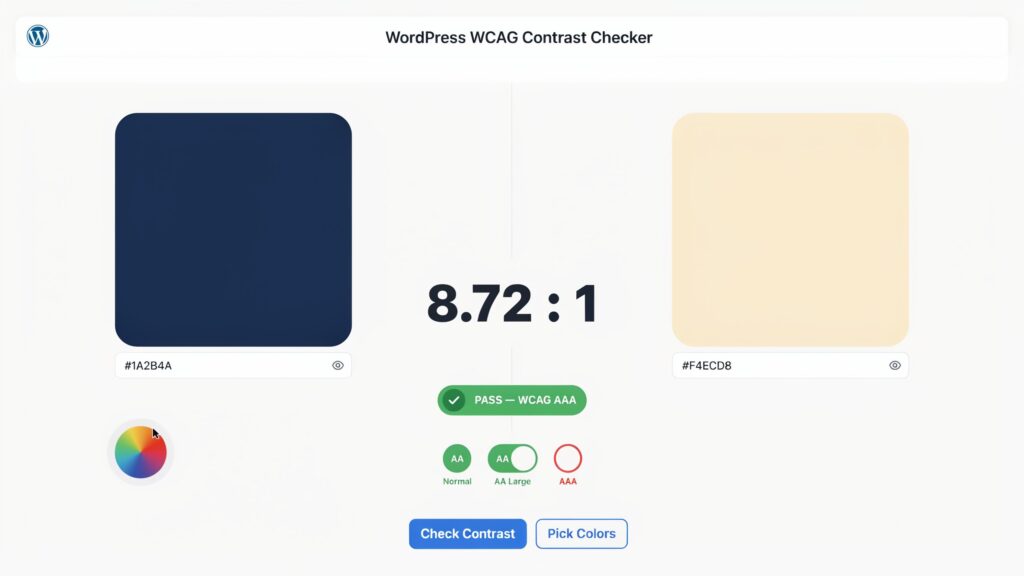
A concise 2-sentence intro outlining how to test foreground and background colors to ensure legal accessibility standards.
WCAG Color Contrast Checker
Check color contrast ratios against WCAG 2.1 AA & AAA accessibility standards.
Color Selection
Accessibility Check
This is normal size body text (12pt/16px). Accessible design ensures content remains readable for users with visual impairments.
WCAG stands for the Web Content Accessibility Guidelines. Published by the World Wide Web Consortium (W3C), these standards provide the international benchmark for making websites usable for everyone—including people with visual impairments, color blindness, aging vision, or situational issues like screen glare.
At its core, color contrast measures the difference in light (perceived luminance) between two elements:
- Foreground: Usually your text, an icon, or a button label.
- Background: The canvas, card, or container behind that foreground element.
This difference is expressed as a ratio, ranging from 1:1 (pure white on pure white—completely invisible) to 21:1 (pure black on pure white—maximum possible contrast).
Understanding the Contrast Numbers: AA vs. AAA
The WCAG specifications (versions 2.1 and 2.2) categorize compliance into levels. For everyday web design, you only need to keep two tiers in mind: Level AA (the standard legal baseline) and Level AAA (enhanced, high-contrast access).
| Element Type | WCAG Level AA (Minimum) | WCAG Level AAA (Enhanced) | Where You See It |
| Regular Body Text | 4.5:1 | 7:1 | Blog paragraphs, navigation links, form labels |
| Large Text | 3:1 | 4.5:1 | Headers (≥ 24px regular or ≥ 18.5px bold) |
| UI Components & Icons | 3:1 | N/A | Button outlines, input borders, standalone icons |
Why Is “Large Text” Allowed Lower Contrast?
Larger fonts have thicker strokes, making character shapes easier to distinguish with less color differentiation. Regular body copy (14px to 16px) features delicate letter anatomy, requiring at least a 4.5:1 ratio to avoid blending into the background.
Step-by-Step: How to Use Our WCAG Contrast Checker
Using the tool on our site takes less than 30 seconds. Here is the workflow:
- Grab Your Foreground Color: Copy the HEX code (e.g.,
#2D3748) of your text or link from your design file (Figma/Canva) or your stylesheet. Paste it into the Foreground Color field. - Grab Your Background Color: Copy the HEX code of the container behind the text (e.g.,
#FFFFFFfor clean white or#F7FAFCfor an off-white card) and paste it into the Background Color field. - Review Your Calculated Ratio: The tool instantly calculates your numerical ratio alongside direct PASS / FAIL badges for:
- Normal Text (AA & AAA)
- Large Text (AA & AAA)
- Graphical Objects & User Interface Elements
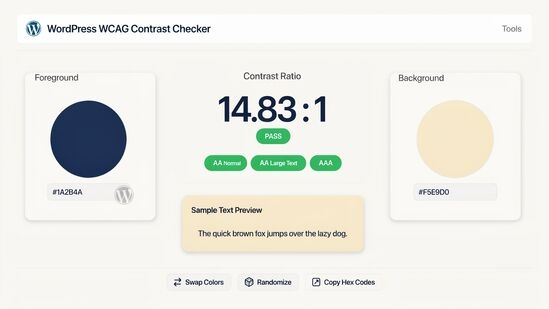
- Test Real Text in the Preview Box: Check the dynamic preview to see how your colors look together in actual headings, paragraphs, and interactive buttons.
- Adjust on the Fly: If your combination fails, use the lightness/brightness sliders to darken or lighten one of the colors until all badges turn green.
4 Common Color Mistakes (And How to Fix Them)
1. Light Gray Secondary Text
- The Mistake: Designers often use muted grays like
#999999or#A0AEC0on white backgrounds for meta information (like publish dates or author bios) to establish visual hierarchy. On white,#999999yields a ratio of around 2.8:1—a hard failure. - The Fix: Darken that secondary gray to at least
#595959, which delivers a crisp 7:1 ratio while still appearing visually softer than pure black.
2. White Text on Brand-Color Buttons
- The Mistake: Placing white text over bright yellow, sky blue, or neon green primary buttons.
- The Fix: If your brand identity requires a light, vibrant background color, switch the text color from white to a deep navy or black (
#1A202C). Or, keep the white text and shift the button tint slightly deeper until it crosses the 4.5:1 threshold.
3. Faint Input Form Borders
- The Mistake: Modern forms often use ultra-thin, barely visible gray outlines around text fields. While subtle, users with low contrast sensitivity cannot tell where the field begins or ends.
- The Fix: Under WCAG Contrast Checker 2.1 Criterion 1.4.11, UI boundaries that indicate interactive states must maintain at least a 3:1 ratio against adjacent surfaces.
4. Text Over Unfiltered Images
- The Mistake: Overlaying white or black text directly on a hero background photograph. Because photos contain both bright highlights and dark shadows, parts of the text inevitably become illegible.
- The Fix: Add a semi-transparent dark overlay (e.g.,
rgba(0, 0, 0, 0.6)) or a solid card behind the text block to keep contrast consistent across screen sizes.
The Business Benefits of Accessible Contrast
Fixing your contrast ratios is not just about ticking a technical box; it yields real business results:
- Lower Bounce Rates & Higher Engagement: If reading an article causes eye strain within 10 seconds, visitors leave. Clear text invites longer reading sessions and better retention.
- Better Usability on Mobile: People browse on mobile devices outdoors under harsh sunlight or in battery-saver modes with reduced screen brightness. High-contrast pages stay legible in challenging conditions.
- Legal Peace of Mind: Digital accessibility regulations (such as ADA Title III, Section 508, and the European Accessibility Act) increasingly require WCAG 2.1 AA compliance. Proactive auditing shields you from compliance complaints.
- Search Engine Optimization: Search engines reward websites with strong user-experience signals, low bounce rates, and clear semantic layouts.
Quick Checklist: Run a 5-Minute Site Audit Today
Before publishing your next page or template, run these core combinations through the checker:
- [ ] Body paragraph text against your primary background
- [ ] Heading tags (
H1,H2,H3) against their sections - [ ] Primary and secondary button text against button backgrounds
- [ ] Text link colors (both normal and hover states) against page backgrounds
- [ ] Form input labels and placeholder text
- [ ] Header navigation links and footer copy